 To generate the Group History Report:
Select the Group History command:
The Sales and Catering Menu may be reached either directly from the Quick Menu, or by using the Full Menu and selecting Sales and Catering => from the Other section.
1. Select Sales and Catering => from the Quick Menu (left side of screen).
 OR
OR 
OR
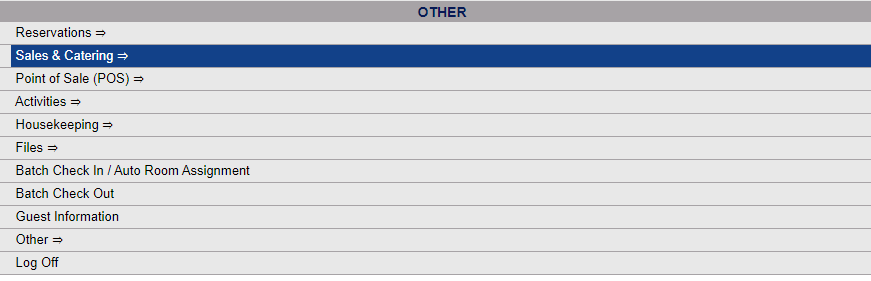
2. Select Sales and Catering => from the Other section of the Full Menu,
Click the icon on the left for the Full menu.
 OR
OR 
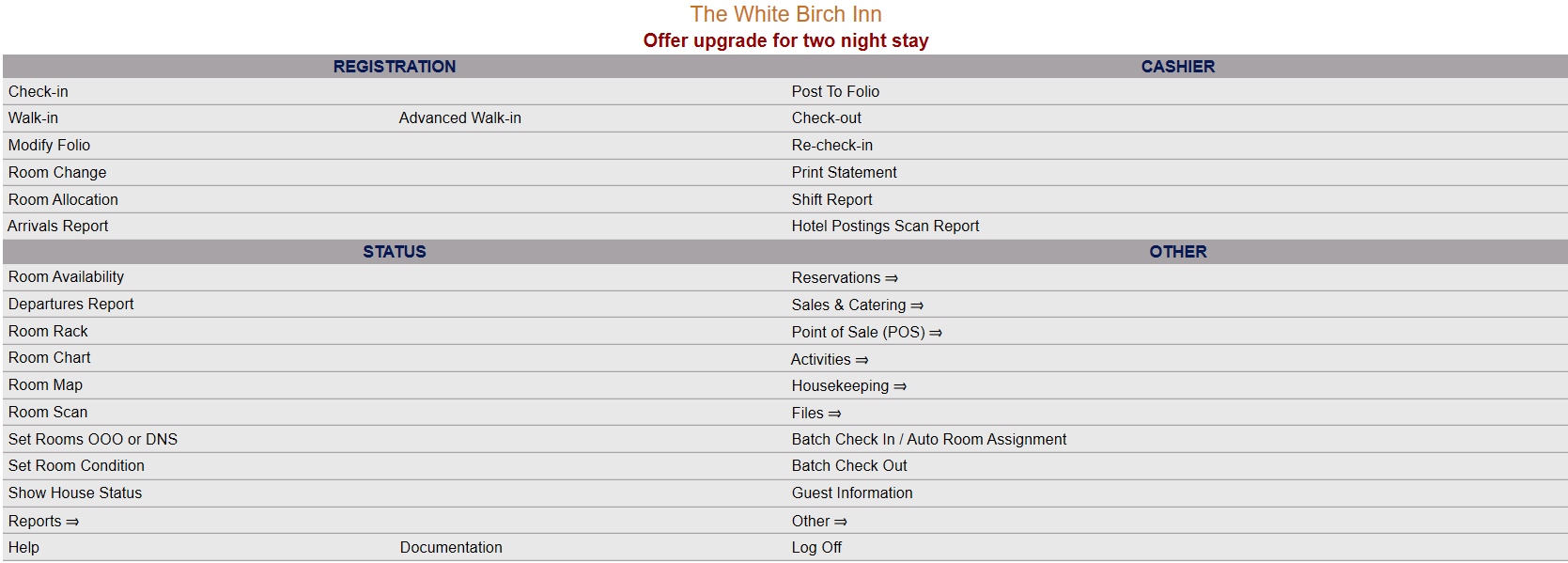
This will display the Full menu in a tabular form, with four sections, Registration, Status, Cashier and Other.
 OR
OR 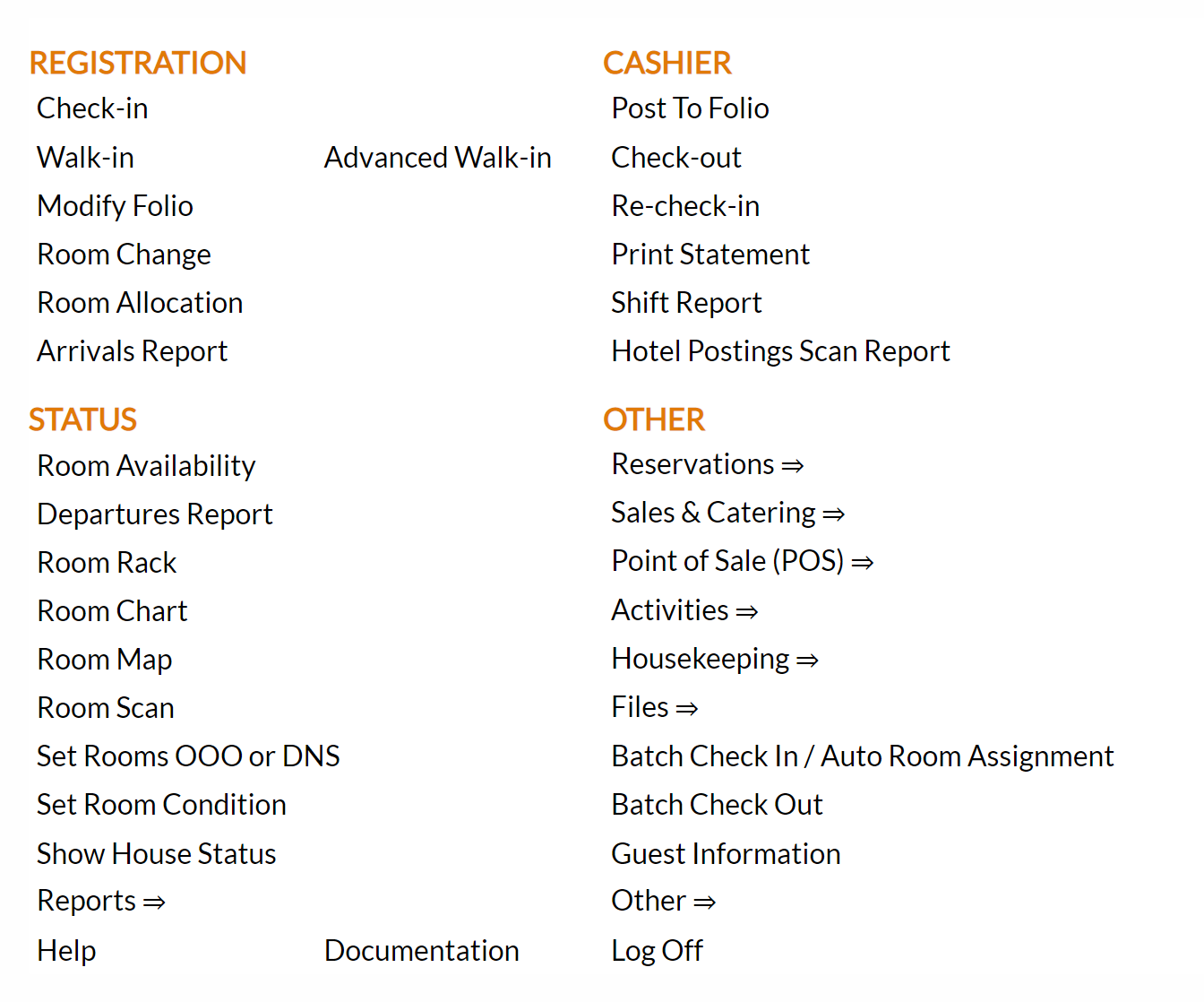
Select Sales and Catering => from the Other section.
 OR
OR 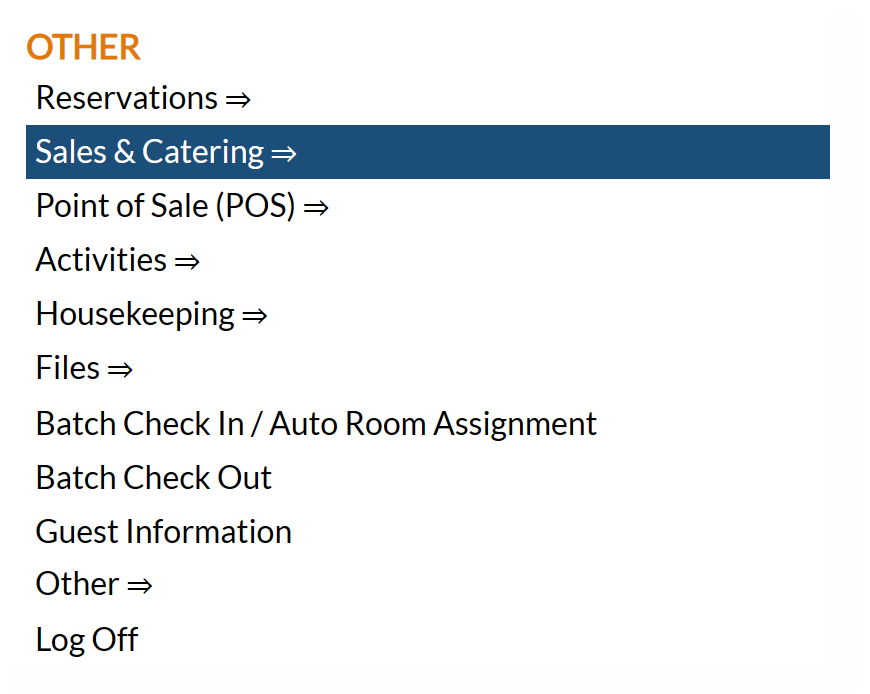
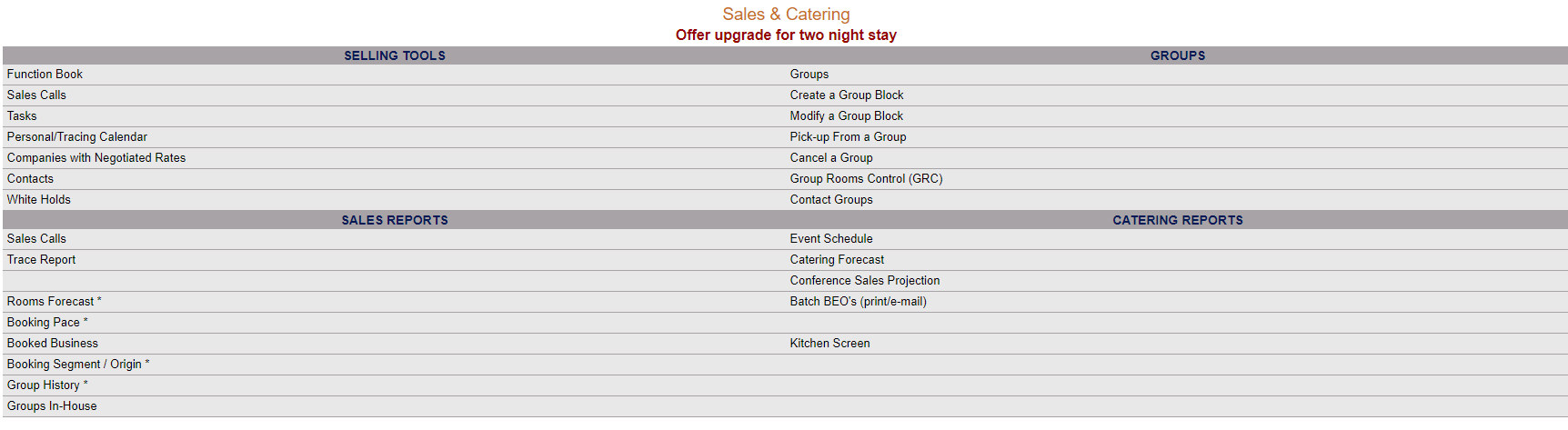
This will display the Sales and Catering menu in a tabular form, with four sections, Selling Tools, Groups, Sales Reports and Catering Reports.
 OR
OR 
The Group History command is in the Sales Reports section.
 OR
OR 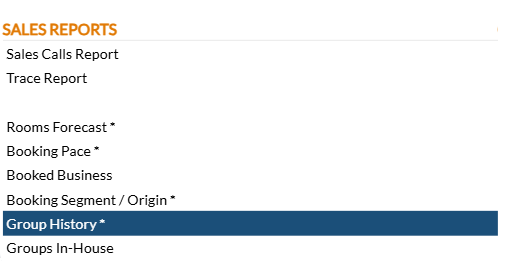
When the Group History command is selected, the Group History Report screen will open.
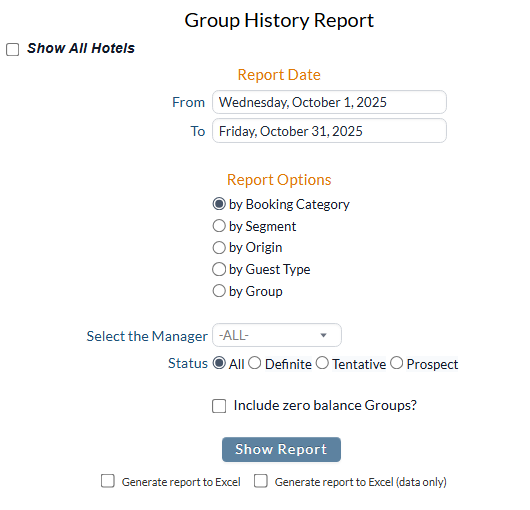
Show All Hotels: This box may be checked or unchecked. By default it is unchecked, meaning the generated report will show information ONLY for the current Property. For this report, you may choose to show the information from ALL your Properties within Skyware on one report, rather than generating separate reports for each Property.
Report Date: You will need to specify the Date Range for the Report.
Select the date range you wish to have displayed on the report. By default the dates selected span the current month.
From: Click within the date field to expand the calendar and choose the desired date. By default, the first date of the current (system) month is selected.
To: Click within the date field to expand the calendar and choose the desired date. By default, the last date of the current (system) month is selected.
Report Options: You have several Report options to choose from, to select how the report will be displayed.
Show Report By: Choose ONE option using the radial buttons:
by Booking Category,
by Segment,
by Origin,
by Guest Type, OR
by Group.
By default, by Booking Category is selected.
Select the Manager: This is a drop-down menu of available Manager options to select from whom the Groups were associated with. If one is selected, the report will display the bookings associated with that specific Manager only. This allows you to narrow the report focus to one particular manager, if desired. By default, no individual manager is selected (option "-ALL-").
Status: The Group History report can now be filtered by the Group Status. Choose ONE option using the radial buttons.
All,
Definite,
Tentative OR
Prospect.
By default, All is selected.
Include zero balance Groups?: This box may be checked or unchecked. By default it is unchecked.
When ready, click the button Show Report.
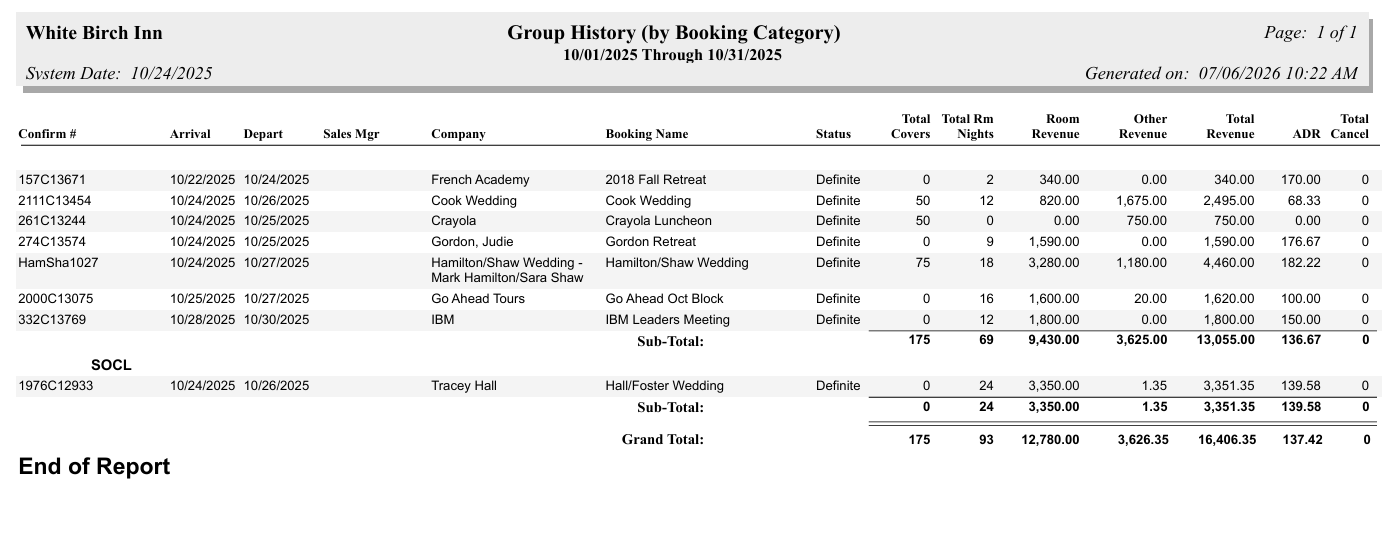
Once generated the Group History Report displays the confirmation number of the group reservation, arrival and departure dates, the sales manager the booking was associated with, the company name, the booking name, the status of the booking, total number of room nights with this group, and any revenue associated (broken down into room, other and total revenue categories). Depending on the report option selected, the Groups in the date range selected may be displayed in a different order, but the information categories shown for each remains the same.
Group History Report examples:
By Booking Category.
By Segment.
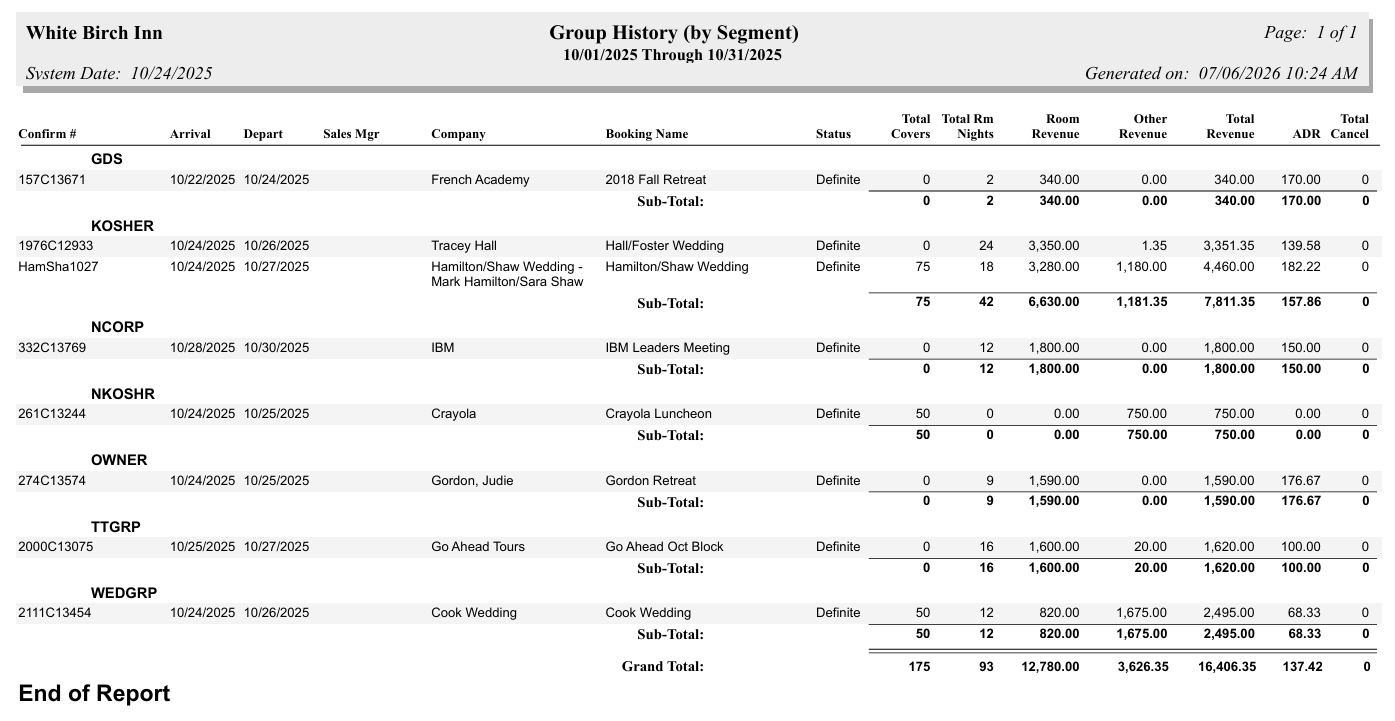
By Origin.
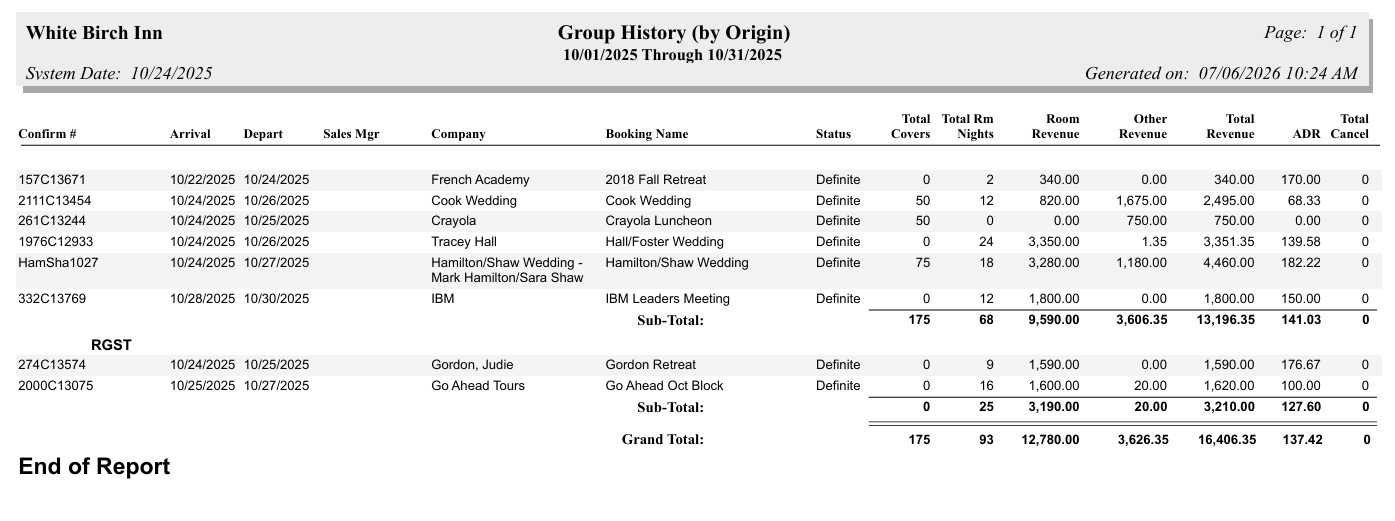
By Guest Type.
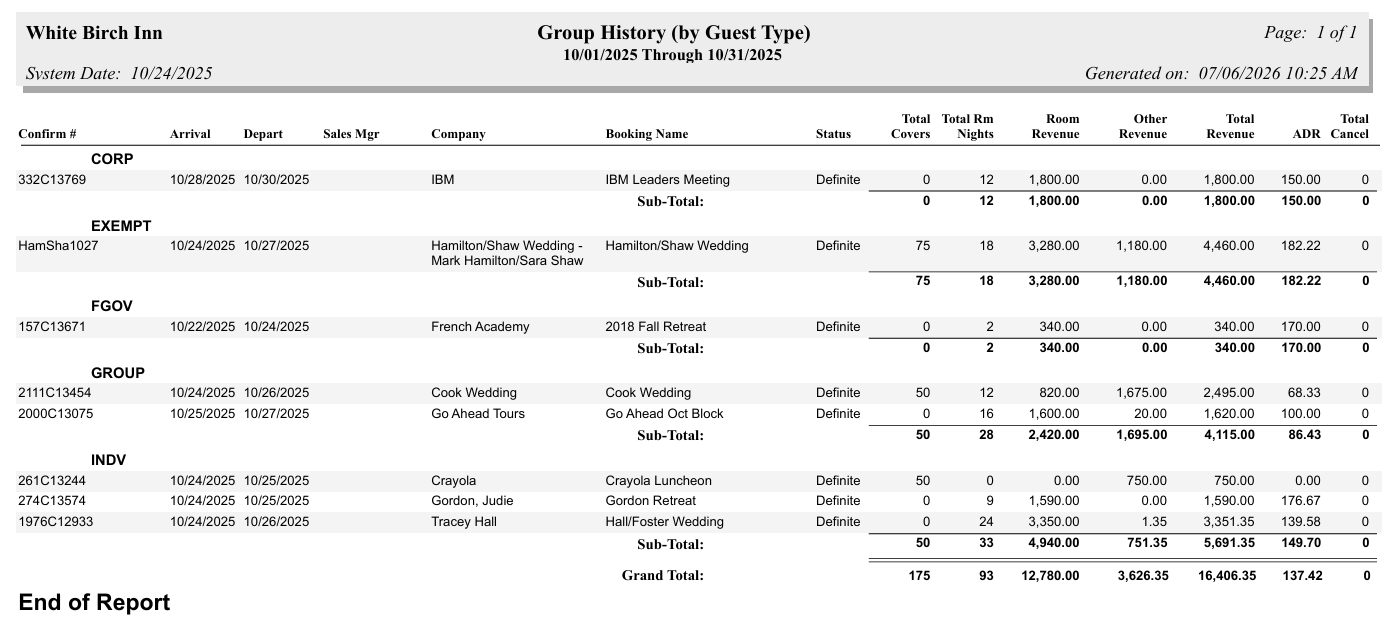
By Group.
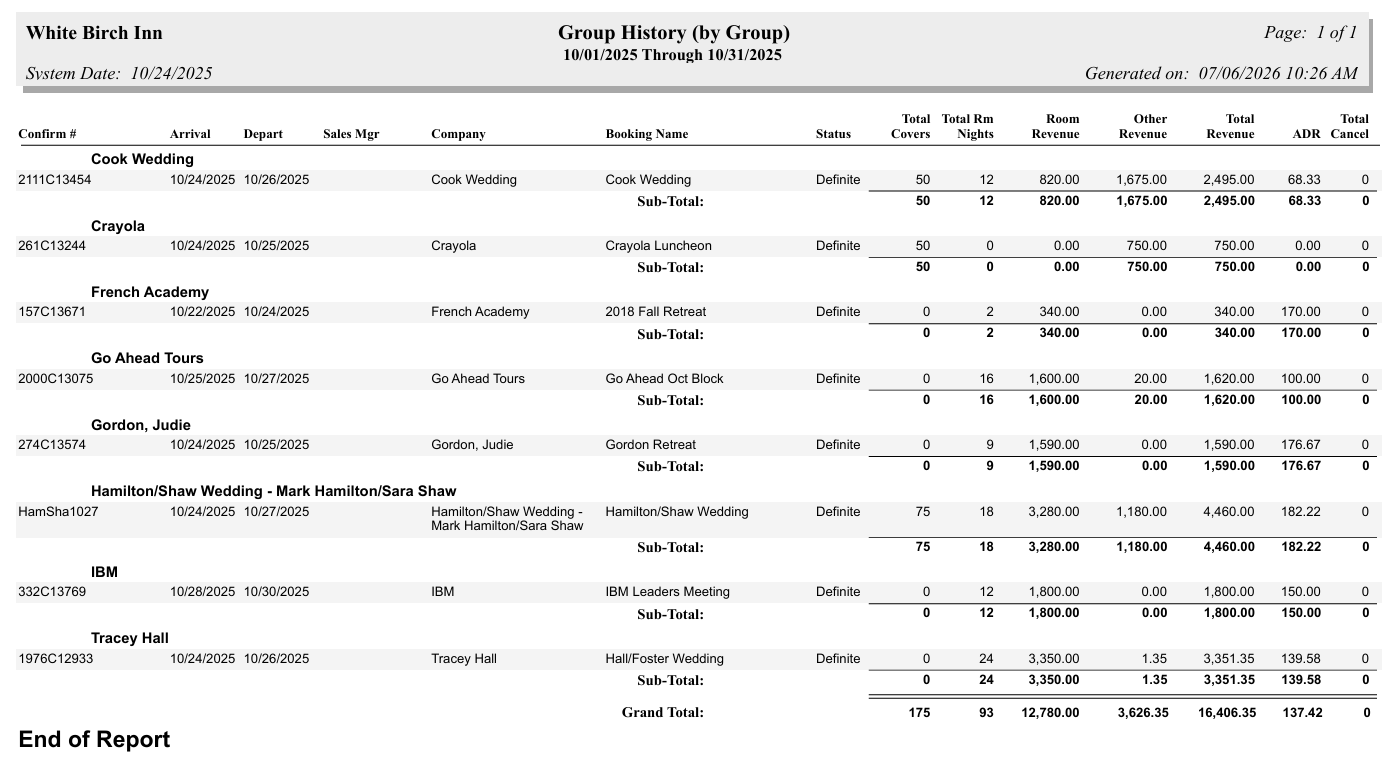
By default, the report is generated in PDF form and opens in a separate browser window. From there you can select to save or print the report, among other options. You can, instead, check the Generate report to Excel checkbox or the Generate report to Excel (data only) checkbox. depending on how you wish to use the information in the report.
NOTE: The generated report appears as a pop-up window through your browser. If your browser is set to block pop-ups, you may receive a warning banner at the top of the browser. Click this banner and select to allow pop-ups so that you can view the report.